Table of contents
Digital notification
If there is at least one digital domicile, NP notifies the NCR via PEC or SERCQ. If there are multiple digital domiciles, they will be used according to the following order of priority:
- Platform digital domicile (if the one configured by the recipient for the sending institution of the notification is available, otherwise the one configured by the recipient for sending institutions in general)
- Special digital domicile (indicated by the sending institution when creating the notification)
- General digital domicile (provided by IniPEC or INAD)
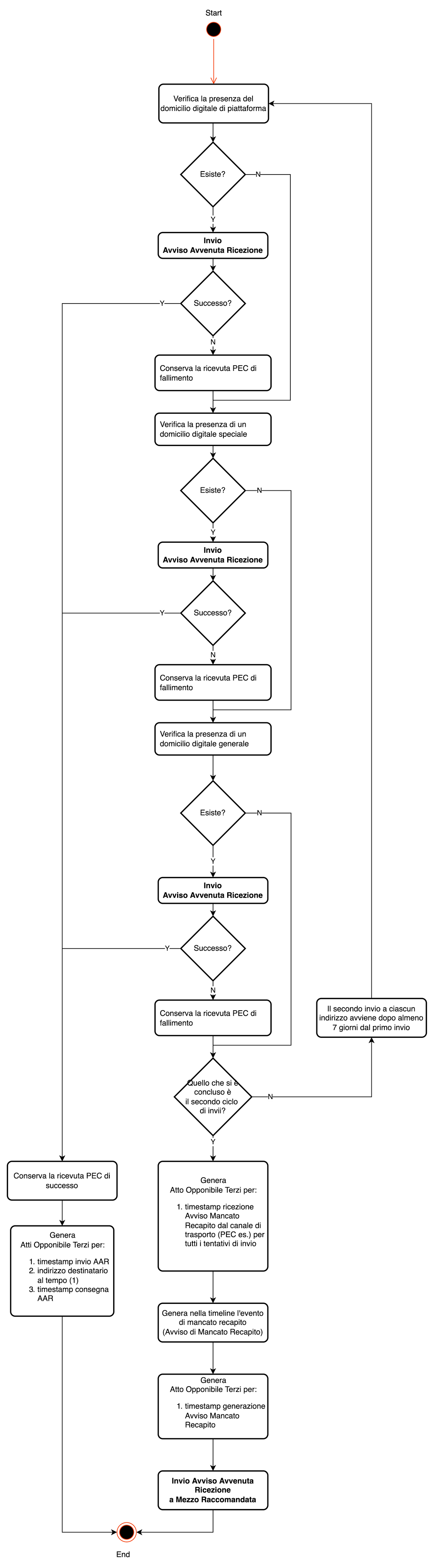
NP will interrupt the sending attempt at the first success. In case of failure of the first digital sending attempt (e.g. inbox full or temporary unavailability due to a disruption in the PEC or SERCQ service), the digital notification will be attempted again after at least 7 days from the first failed attempt. The time between the first and second attempt can vary between 7 and 9 days based on the system load.
If the notification process via PEC or SERCQ fails also at the second attempt, a notice of failed delivery (NFD) will be created and connected to the IUN in order to be visible to the recipient if they access the NP portal. The NFD is a timeline element that is visible to all recipients of the notification. The NCR is also sent to the recipient by registered mail.
Regardless if the digital notification process is successful or if it fails, a certificate enforceable against third parties is created indicating the attempted notification steps and their result. In the case of failure, this certification certifies the provision of the NFD.
The notification is completed for the recipient 7 days after the delivery of the NCR via PEC or SERCQ or 15 days after generation of the NFD. If the notice of completed reception or the possible generation of the NFD is delivered to the recipient after 9 pm, the number of days indicated previously for completion is increased by 1 (art. 26 Leg. Decree 76/2020).
